

Introduction to 3ds Max Architecture
Autodesk 3ds Max is the most popularly used program for creating 3D models, games, and animations. 3D artists and developers widely use the program. It is used basically in the gaming and entertainment industry for editing and creating 3D artworks. One of the most useful uses of the 3D Max is in the architectural industry, where architects use the program to create 3D models of Interior and Exterior architecture to better understand the building or the object.
Architectural drawings and models help the user to determine the design and outlook of the project. Some of the architects use AutoCAD for such drawings, where 2d is also involved on a larger scale. We can even import our 2D drawings into 3D max and work upon them in the program itself. With 3D max, the user can create, texture, render and light the objects and see the desired results.
How to Create 3D Architecture in Max?
Below is the explanation for creating 3d architecture in max:
- Creating models and drawings in Max is different as compared to AutoCAD. The program has four viewports, namely: Left, Front, Top, and Perspective. Since 3D Max is wholly a 3D program, it supports different tools and functions for the same.
- We have standard primitives to create simple shapes and objects, and they can further be edited by converting them to Editable Polygons and surfaces. In addition to this, we also have the extended primitives that are an extension to the standard primitives.
- While creating exterior and interior architecture, we use these primitives and then convert them into suitable Polygon, Mesh, Patch or NURBS Surfaces to edit and create different shapes and designs from them. When we are finished with the creating part, we move to add the materials to the project and then provide Lightning to the scene. Finally, we use the Renderer to render our scene and show the outputs.
- 3D Max has a default rendering method called the Scan line rendering. While there are other renders available as the extra Plugin with the program. The most famous and important renderer is the V-Ray which helps in rendering scenes without any error.
Creating 3D Exterior Architecture in 3D Max
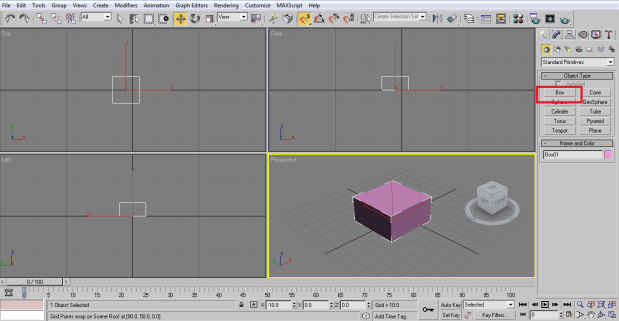
Step 1: Create a Box as shown in the screenshot.
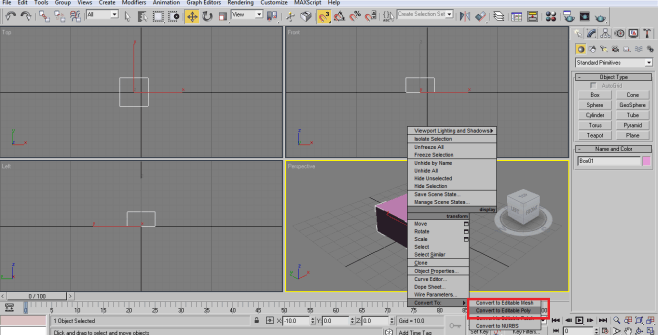
Step 2: Right-click on the box and click CONVERT TO > EDITABLE POLY.
Step 3: As soon as the box gets converted to editable poly, click on the MODIFY TAB to see the setting of the Box.
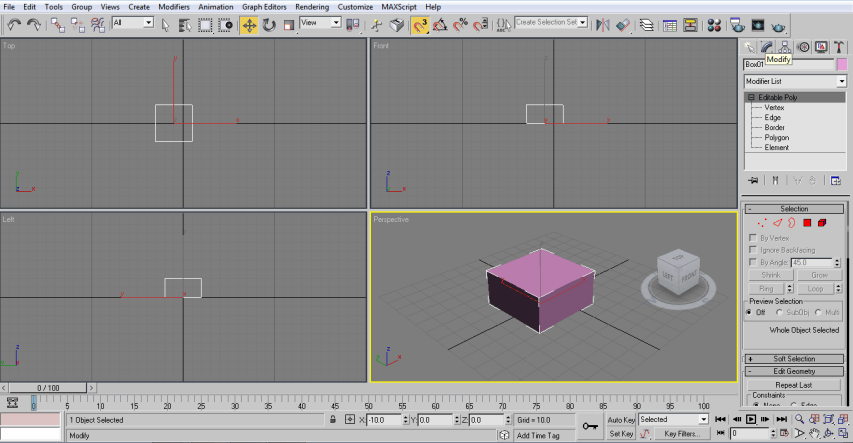
Step 4: Click on the polygon from the EDITABLE POLY MENU and select the topmost polygon of the box.
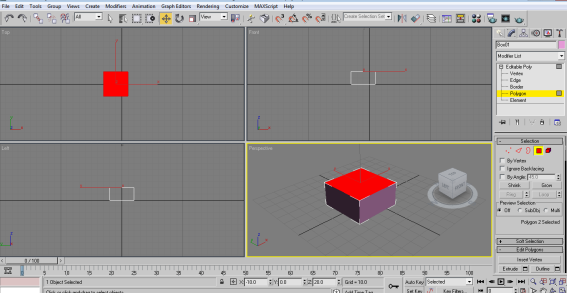
Step 5: Right-click and select INSET.
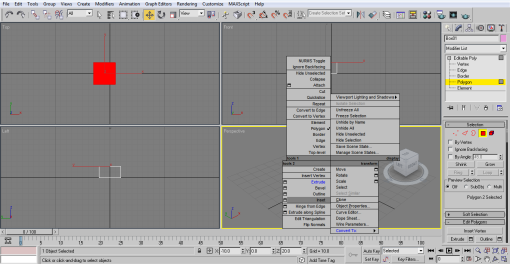
- As shown in the screenshot.
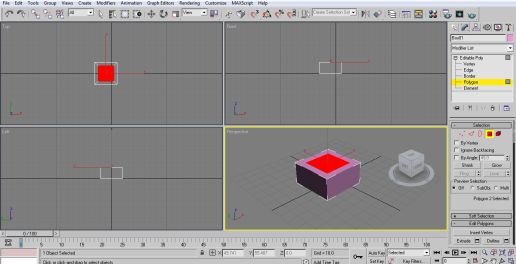
Step 6: Next, right-click and select EXTRUDE and push the box downwards as shown in the screenshot.
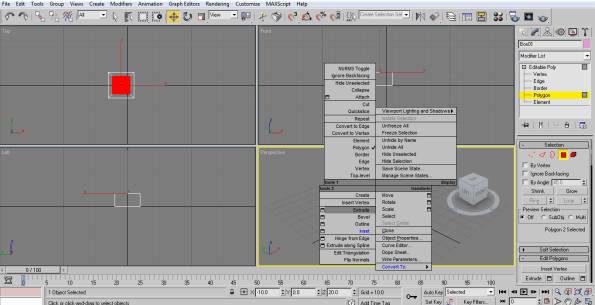
Step 7: Select the four polygons as shown in the screenshot and extrude them downwards.
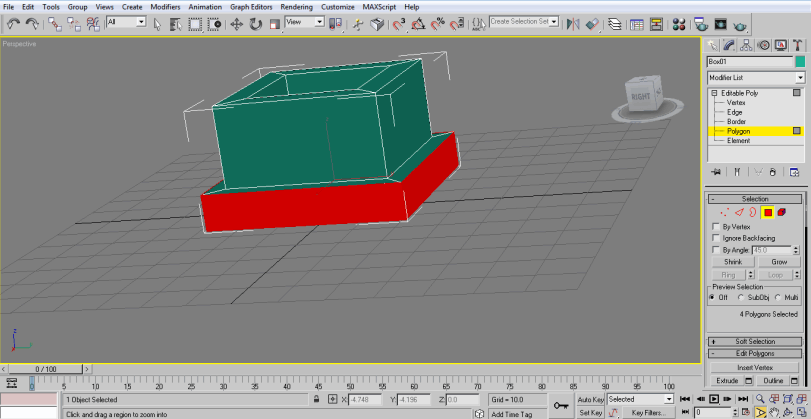
Step 8: Select the edges as shown in the screenshot and click on CONNECT, to make a bridge between the two.
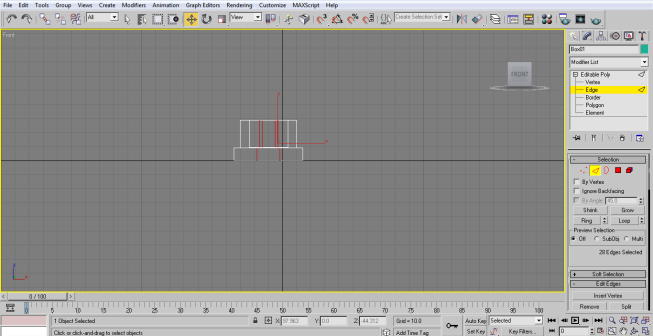
Step 9: Select the side edges and connect them and remove the outer polygon, to create a door, as shown in the screenshot.
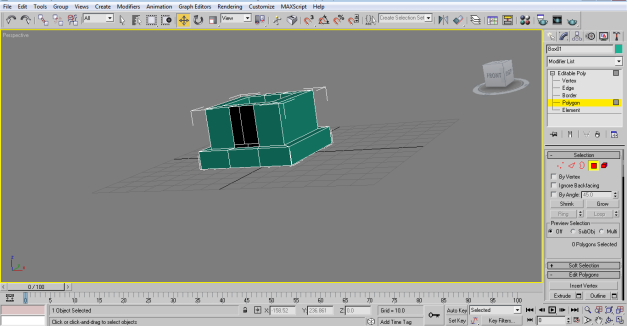
Step 10: To create windows, select the polygon as shown in the screenshot and INSET the same.
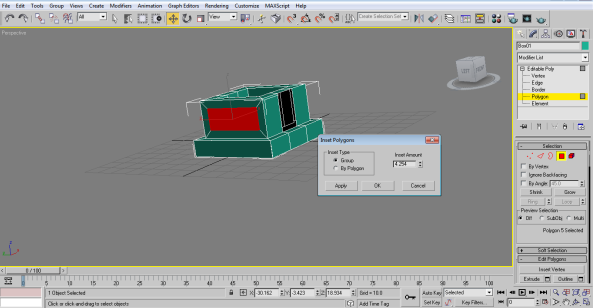
Step 11: Delete the polygon as shown in the screenshot.
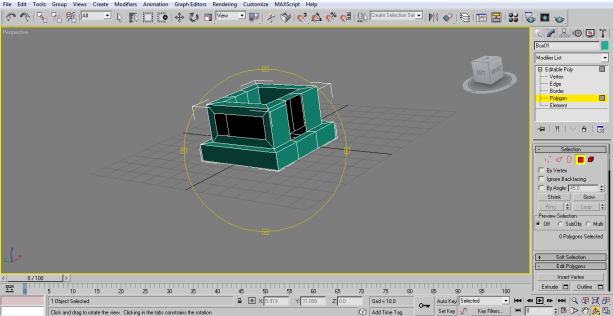
Step 12: Connect the edges and create a bridge, as shown in the screenshot.
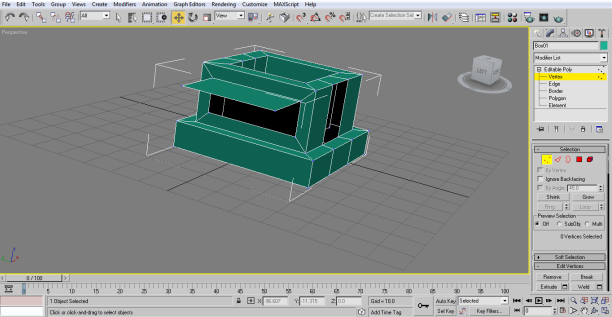
Step 13: Create another box and move it on the top of the house, as shown in the screenshot.
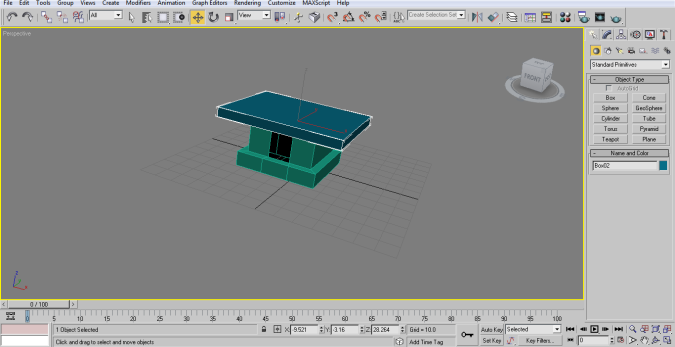
Step 14: After placing the box, convert the same to Editable Poly.
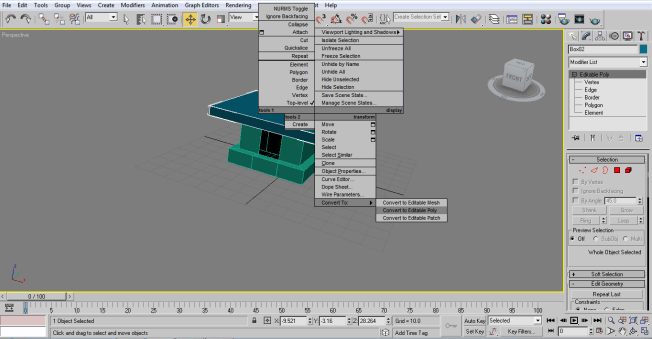
Step 15: Select the edges and connect them as shown in the screenshot.
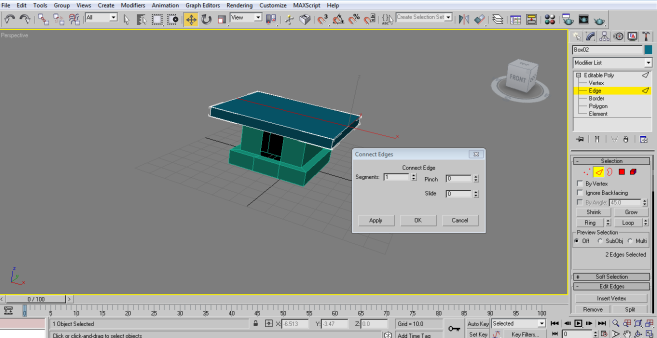
Step 16: Move the created edge upwards, as shown in the screenshot.
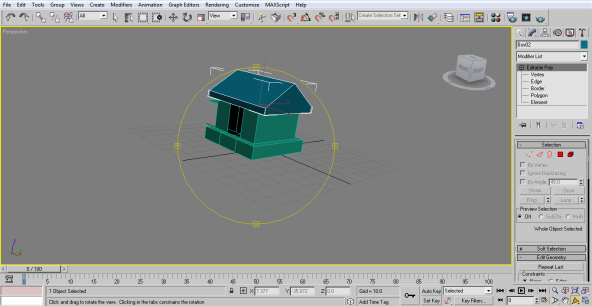
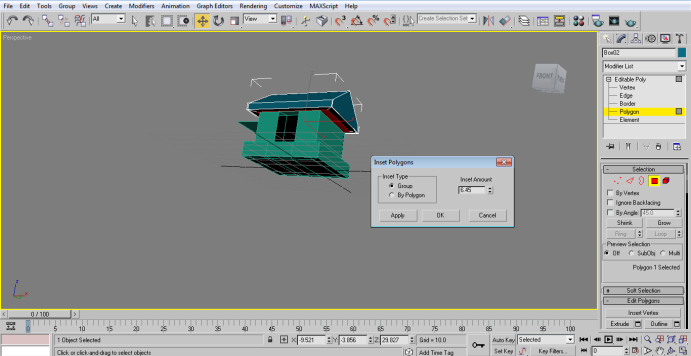
Step 17: Select the bottom polygon of the newly created box and INSET it inwards.
Step 18: Extrude the Inset Polygon as shown in the screenshot.
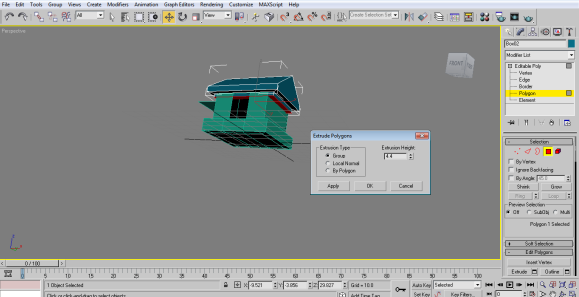
Step 19: The house is ready, as shown in the screenshot.
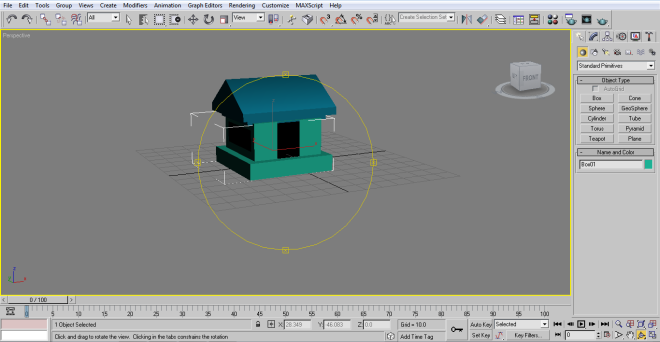
- This is an easy example to show how to create a simple house with the tools and functions present in the 3D Max program. 3d Max program is a vast and powerful software that helps the user create and design architectural models with more than one way and use an infinite number of tools. In this example, we understand that mostly Connect, Extrude, and Inset tools are used to create polygons and edges. Using these tools, only we can create a full interior scene and then further add materials to the same.
- Learning these techniques is not difficult when there are thousands of tutorials provided by Autodesk. We can learn advanced designing and modeling slowly and steadily while working on the software.
Conclusion
3d Max is such software that can be limited to any particular field or industry. It has many uses and advantages that make the program demanding software in the 3D industry. We can say that any designer or modeler will require the use of 3Ds Max at some of the time. The workflow is efficient, and it provides hundreds of plugins and presets as well.
Recommended Articles
This is a guide to 3ds Max Architecture. Here we discuss how to create a simple house with the use of basic tools in the 3D Max program. You can also go through our other related articles to learn more –
- What is 3ds Max and its Uses?
- What is AutoCAD Architecture?
- Steps for Learning 3Ds Max Extrude
- What is Autodesk? | How to Use?
- Steps to Render Objects Using the Maya Software
- Create and Enhance 3ds Max Interior Design
